Work with AI
- English
- 中文
- 日本語
TL;DR
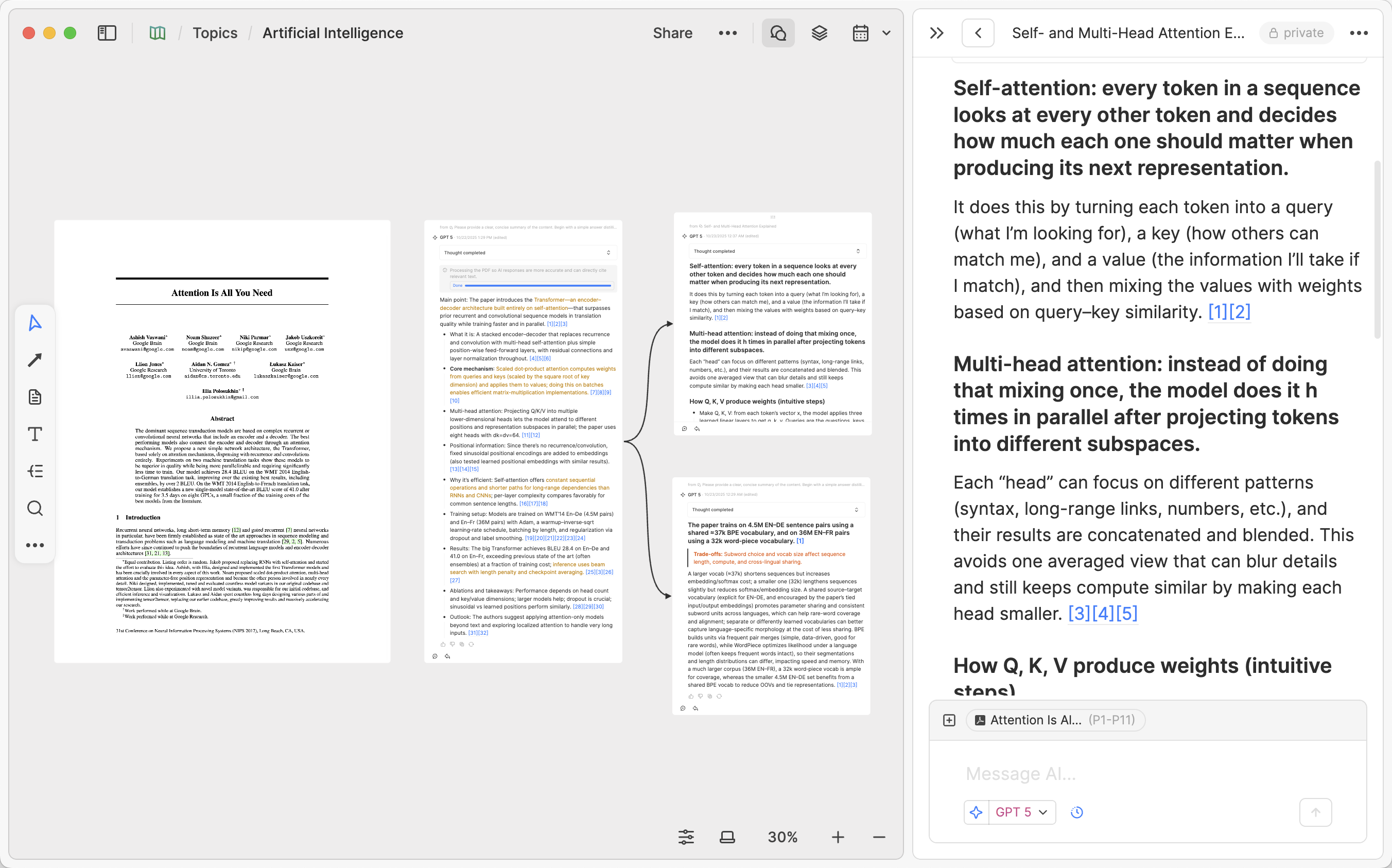
In Heptabase, you can open Chat on a whiteboard to chat with the latest AI models. By adding cards, sections, whiteboards, or content like PDFs, videos, and journals to the chat context, you enable AI to respond based on the content you select. You can also edit and annotate important messages before placing them back on the whiteboard, where they can be visually organized alongside your existing notes for centralized management of topic-related discussions. By working with AI, you can transform linear chat records into a more complete knowledge structure, continuously building deeper understanding of knowledge topics.
Introduction
In the AI era, people use prominent AI apps like ChatGPT, Google Gemini, and Claude to learn and research topics they care about. However:
-
When topics are complex and involve connections between many different concepts, you may wish to extract key knowledge points provided by AI from linear conversation threads and place them on a large whiteboard for easier research and review.
-
When you ask AI questions, you may want AI to read notes you've previously written or saved knowledge content, and provide valuable responses based on this content.
These are exactly what Heptabase's AI features excel at. In this article, I'll walk you through methods for using AI in Heptabase to accelerate learning and research, and share common use cases and workflows for different types of knowledge sources.
Overview
Generally, collaborating with AI in Heptabase includes the following core actions:
-
Open Chat in a topic whiteboard to centrally manage conversations related to that topic.
-
Use the add button "+" or "@" mention to provide the whiteboard and specific content to AI as context.
-
Right-click on PDFs, videos, journals, and cards on the whiteboard to add them to Chat, and have conversations based on these sources.
-
Drag valuable messages to the whiteboard or copy them to cards for editing and adding your own annotations.
-
Hover over any card on the whiteboard to reveal AI action buttons, and use it to perform default or custom AI actions.
-
Use sections, sub-whiteboards, or arrows to gradually integrate AI-assisted understanding into your knowledge graph.
Researching a Topic with AI
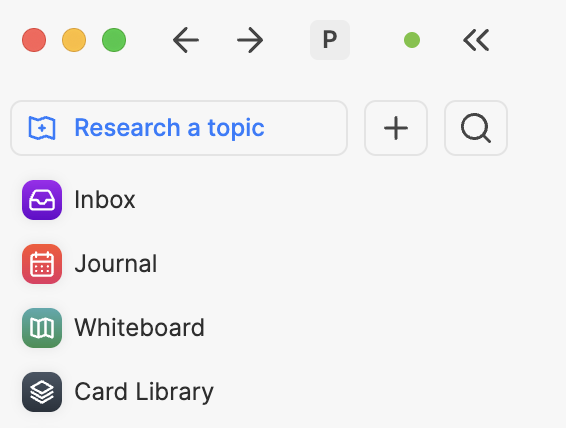
You can find the Research a topic button in the left sidebar. Clicking it opens an interface where you can upload various types of content, including PDFs, YouTube links or playlists, .docx files, plain text documents, and images. After uploading, simply click Start research on a new whiteboard, and the system will add all uploaded content to a new whiteboard. It will automatically parse PDF content and download YouTube video transcripts. Then you can:
- Start asking AI any questions about the whiteboard
- AI responses will include citation links to the original sources, pointing to specific paragraph blocks or timestamps—just click to jump to the corresponding location
- If you're satisfied with an AI response, simply click the New card button to save it as a card
When you want to start researching a new topic, this approach allows you to quickly upload relevant materials and have AI help you plan research directions or summarize content. You can then continue creating your own cards, importing more materials, and engaging in ongoing dialogue with AI to build your own deep understanding.
Chatting with Whiteboards
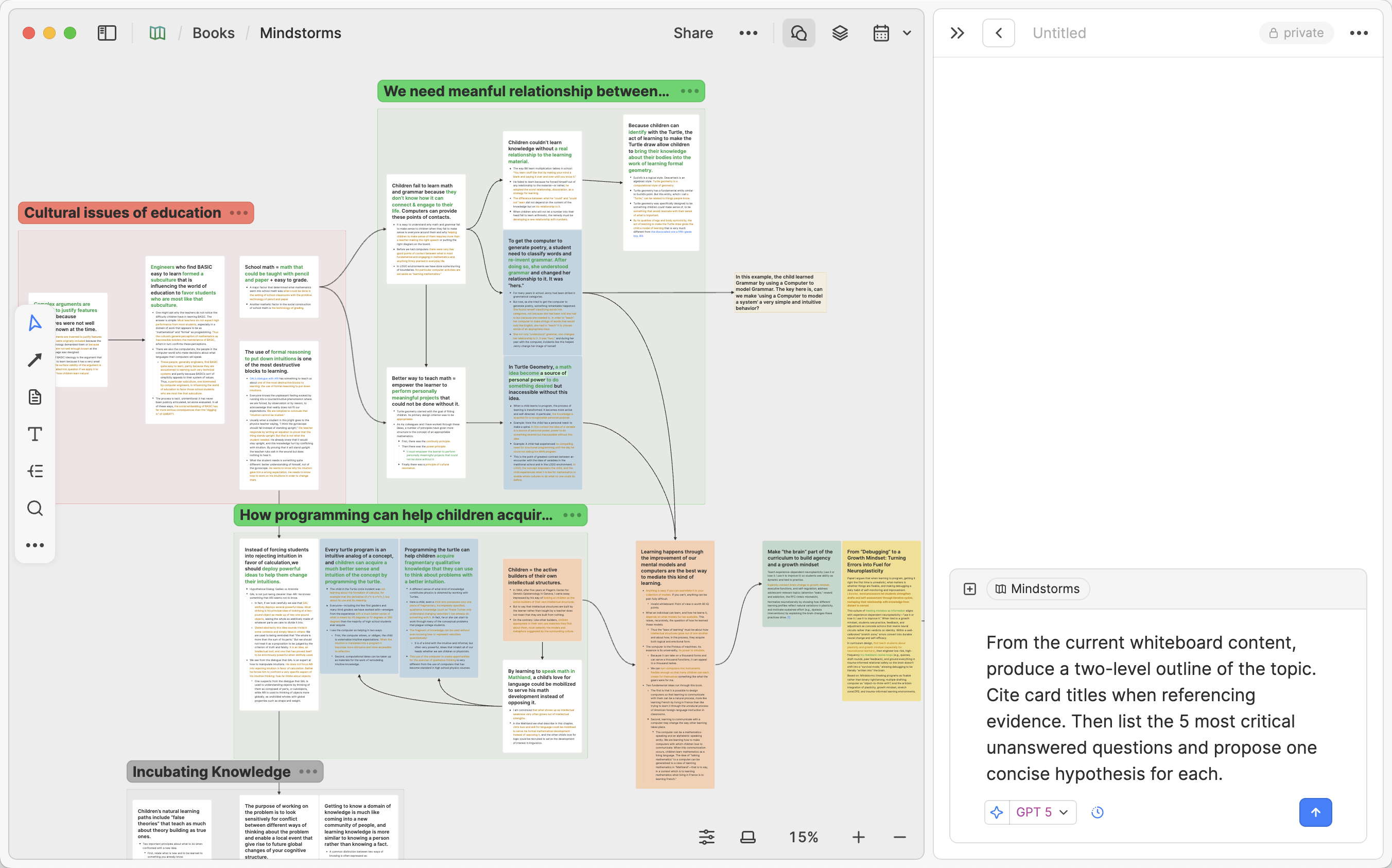
In Heptabase, each whiteboard represents a topic you care about. When you open a whiteboard, you can click Chat in the upper right corner to view chats related to this whiteboard. In each chat, you can not only discuss with other collaborators on this whiteboard, but also enable AI mode to converse with the latest AI models from tech companies like OpenAI, Google, and Anthropic.
Whiteboards serve three main purposes for AI conversations:
-
Thinking tool: When you want to better organize messages from AI, you can directly drag messages you find valuable onto the whiteboard for visualization. As accumulated chats and messages grow, you can use these messages as a foundation to build deeper, more comprehensive understanding of the topic on the whiteboard.
-
Topic-based folder: You can centralize AI chats related to a specific topic on the same whiteboard for easy future reference.
-
Knowledge context: You can add the entire whiteboard to the context of your AI chats, allowing AI to answer your questions based on the whiteboard's content. For example, you can add all journals from the past six months to a whiteboard with one click, ask AI to read them and then ask about things you don't know about yourself, or ask for advice based on these journals; or put multiple PDF files and YouTube videos on a whiteboard, letting AI answer your questions based on them.
Specifically, you can follow these steps to start an AI chat:
-
Open a topic whiteboard, click Chat in the upper right corner, where the default mode is AI Chat.
-
Select an AI model and context in Chat, enter your question and start the conversation.
-
Drag messages you find valuable onto the whiteboard and develop more understanding of the topic based on this information.
Providing Context to AI: Add Button and "@" Mention
Adding context is one of the features that allows AI to deliver maximum value. You can provide context to AI in the following ways:
-
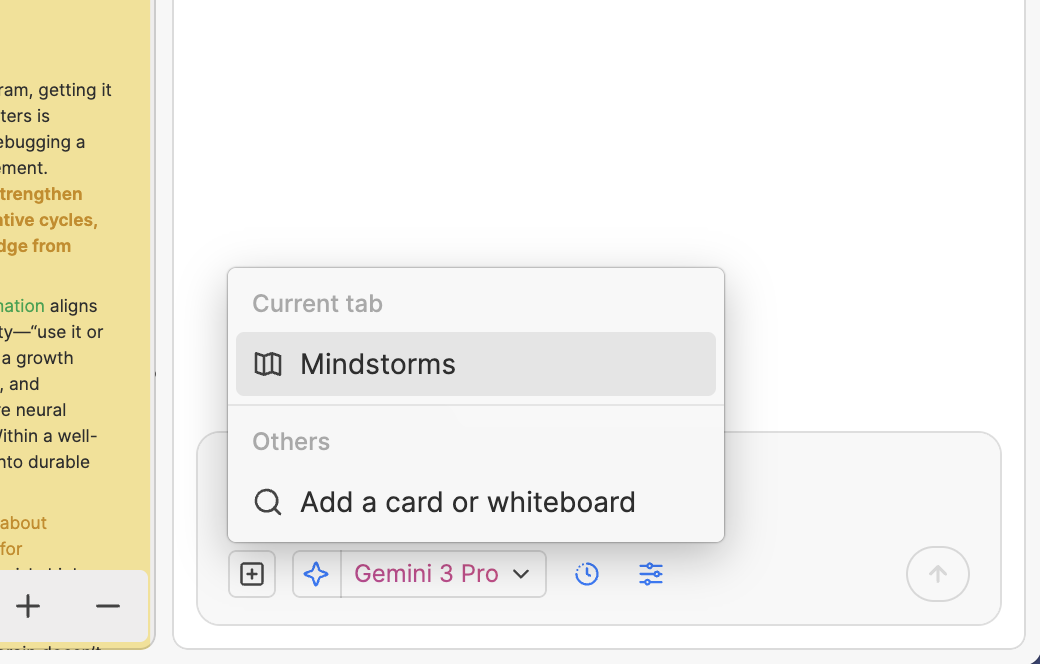
Add button: Click "+" in the left side of the chat box to add specific cards or an entire whiteboard to the context.
-
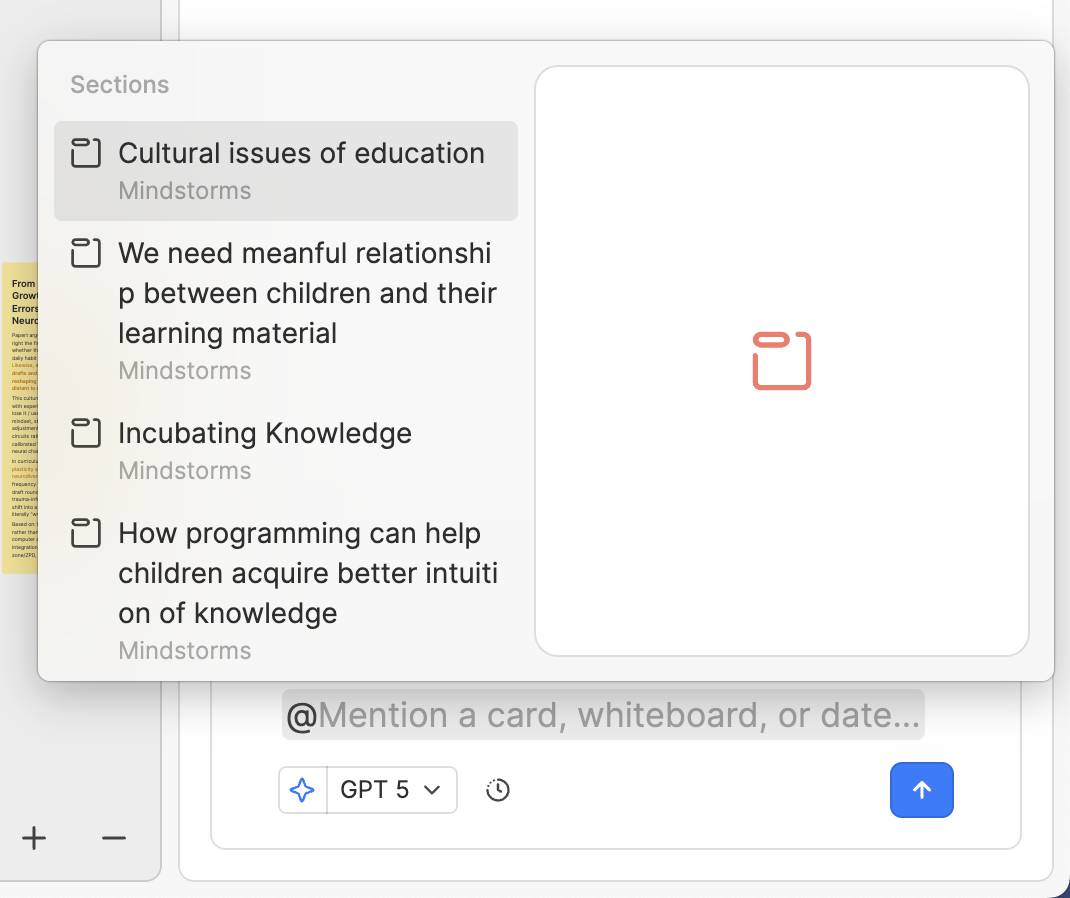
@ Mention: Type "@" in a message, search for and select the card, section, or whiteboard you want as context to make it a key reference. This method is suitable for quickly finding specific materials.
Chatting with PDFs
If your learning and research sources are often PDF files (for example: academic workers doing literature reviews, product managers reading industry reports, students reading reference books), through Heptabase's PDF Parser and AI, you can have AI help you understand PDF content, even discuss specific pages and paragraphs with AI, and break key points into cards to place on the whiteboard while maintaining traceability to page numbers and paragraphs.
For example, when you want to discuss a PDF with AI, you can:
-
Drag the PDF directly onto the whiteboard.
-
Hover your cursor over the PDF and click Ask AI, or right-click on the PDF and select New Chat to start a conversation with AI.
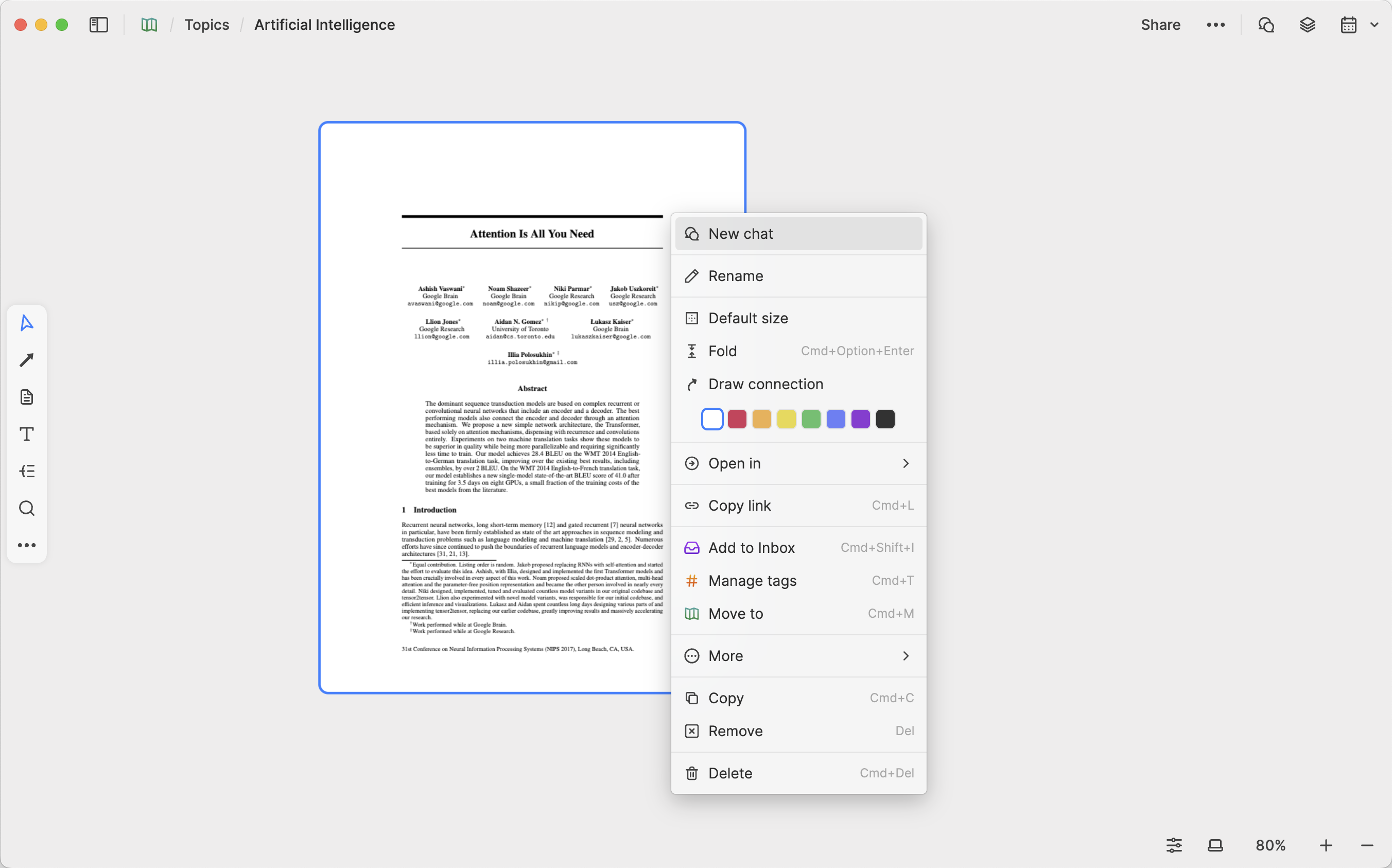
When chatting for the first time, Heptabase will automatically parse all text, tables, images, formulas, and other content in the PDF into a format suitable for AI to read, so some waiting time is required.
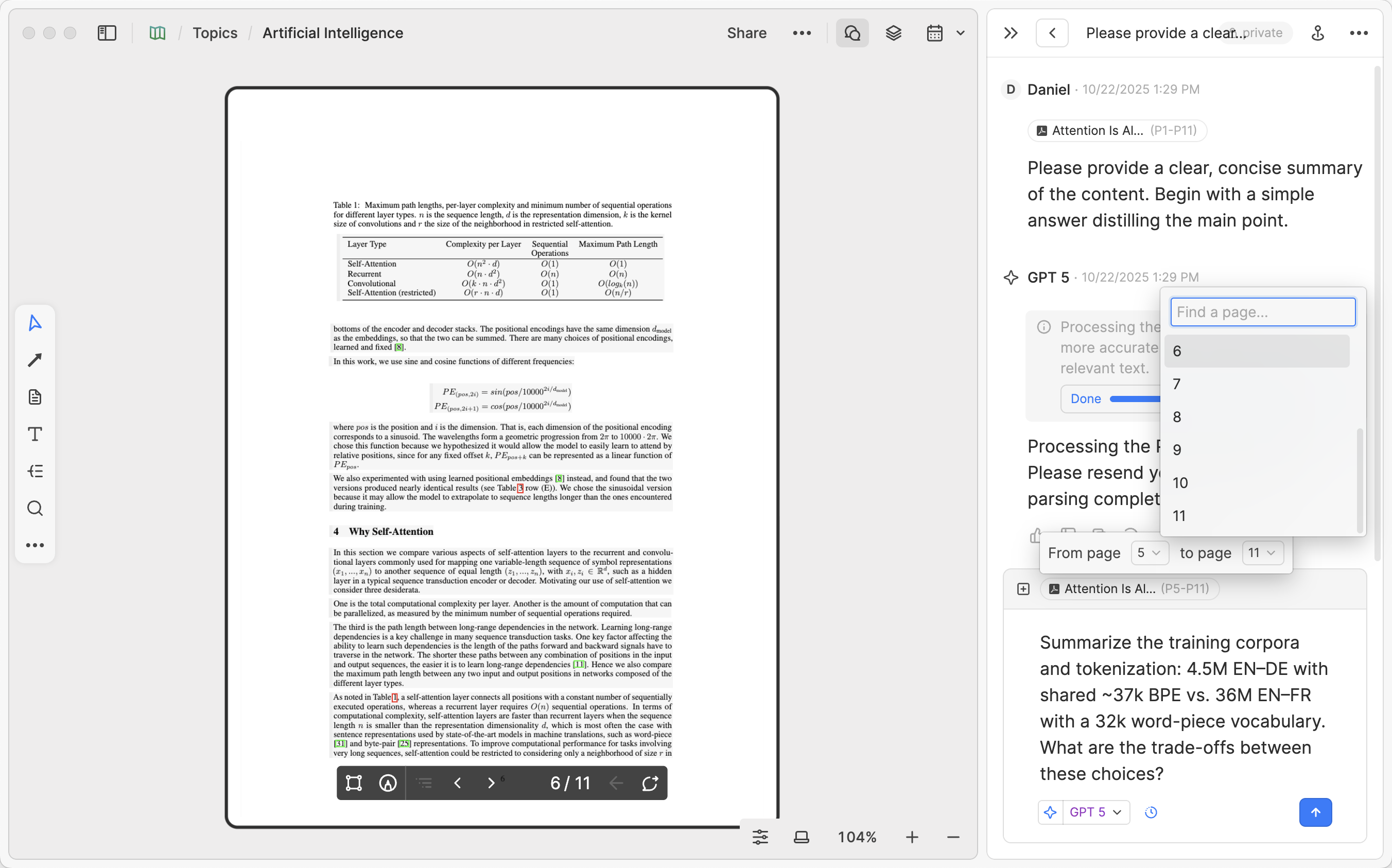
Once parsing is complete, you can specify page ranges when chat with AI based on this PDF. The specific method is as follows:
-
Confirm that the PDF has been added to the current AI chat context (currently not applicable to PDFs mentioned using @).
-
Click the PDF title above the chat box.
-
A range selection menu will appear; select the specified page range.
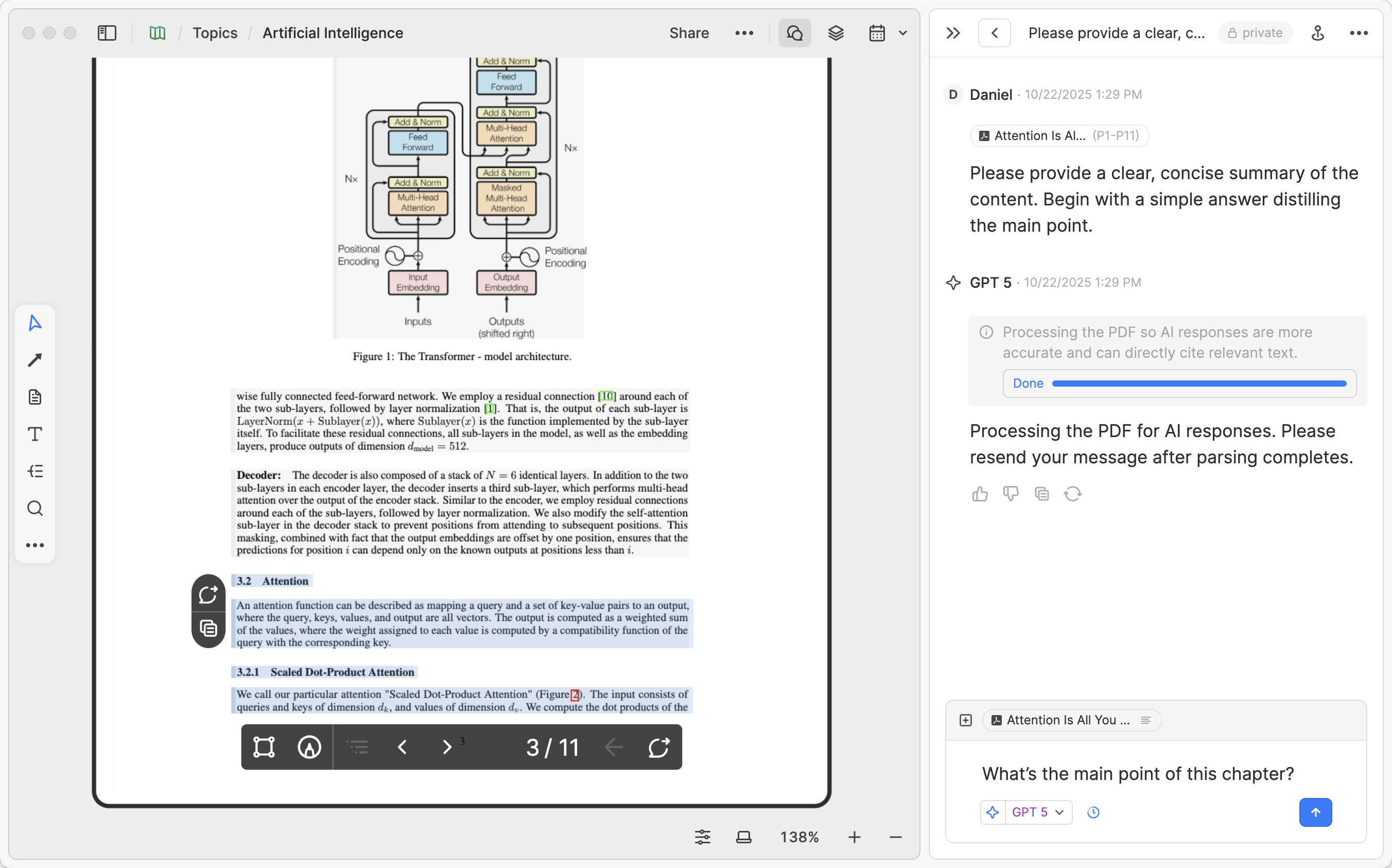
Besides, you can directly select the paragraph you want as context and provide it to AI. In the image below, I selected part of section 3.2, then added the content of that range to the conversation context through the button on the left.
If you want to learn more about actual use cases for deep learning in Heptabase, you can read The Best Way to Use AI for Learning; if you want to know how to read and learn from different types of sources in Heptabase, please refer to Read PDFs, media, eBooks & webpages.
Chatting with Videos
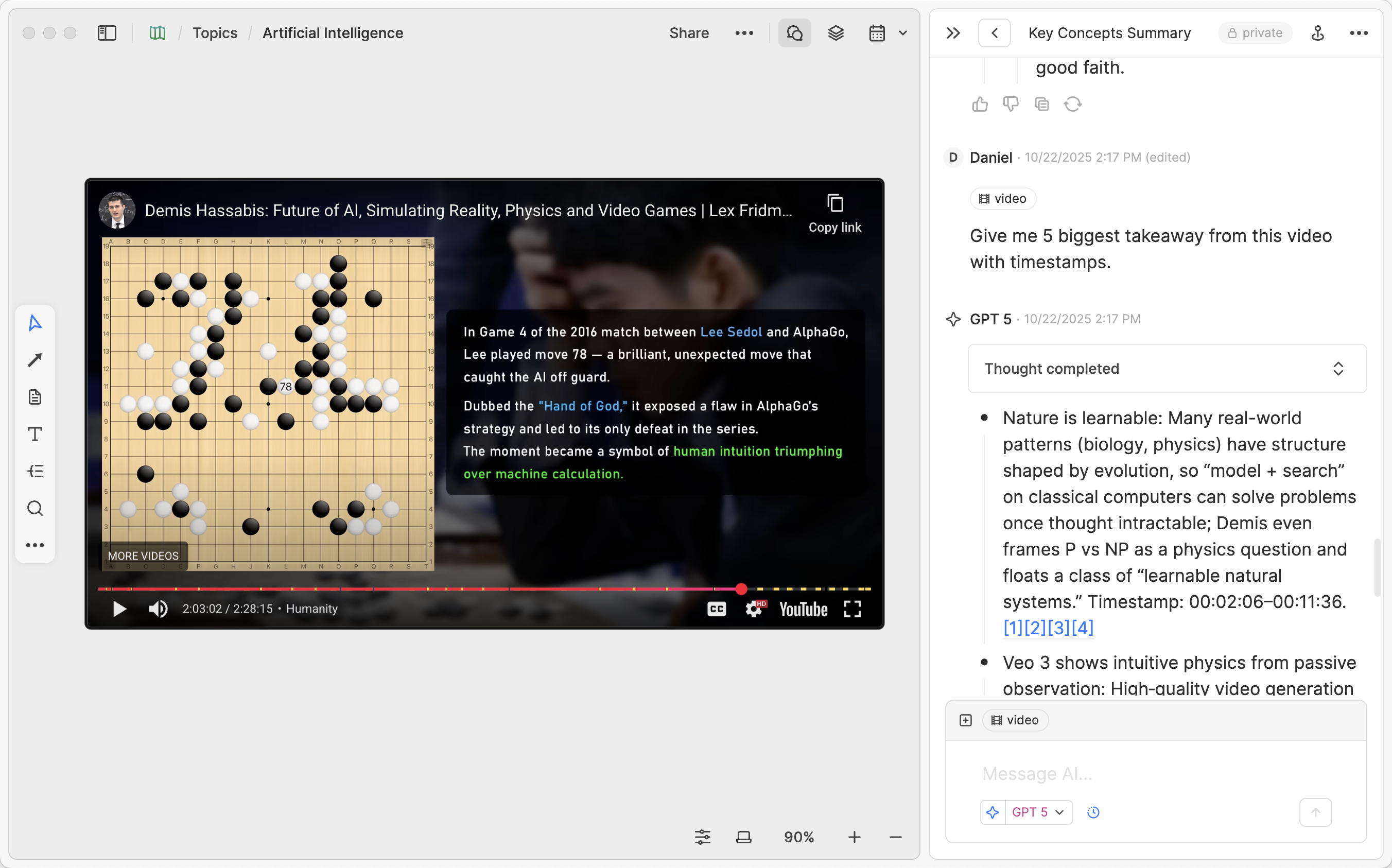
If you prefer to learn or research through videos (for example: watching videos on specific topics and taking notes, attending online courses, reviewing replays of seminars and lectures), you can discuss specific videos with AI directly on the whiteboard. If this is a YouTube video, please follow these steps:
-
Copy the YouTube video URL you want to add.
-
Return to the whiteboard and paste the video using the shortcut (
Cmd/Ctrl + V). -
Right-click on the video and select New Chat to start chatting with AI.
This way, AI can respond based on the video content and attach timestamps to help you trace back to key segments at any time. Through this method, you can quickly transform key points scattered throughout a video into a digested knowledge structure.
Additionally, if the video you want to discuss with AI is not from YouTube, or if you have other types of learning materials like audio files or podcasts, you currently need to drag the file onto the whiteboard first and use Heptabase's speech-to-text feature to generate subtitles before you can chat with AI based on these files. For these operations, please read the Podcast section of Read PDFs, media, eBooks & webpages.
Chatting with Journals
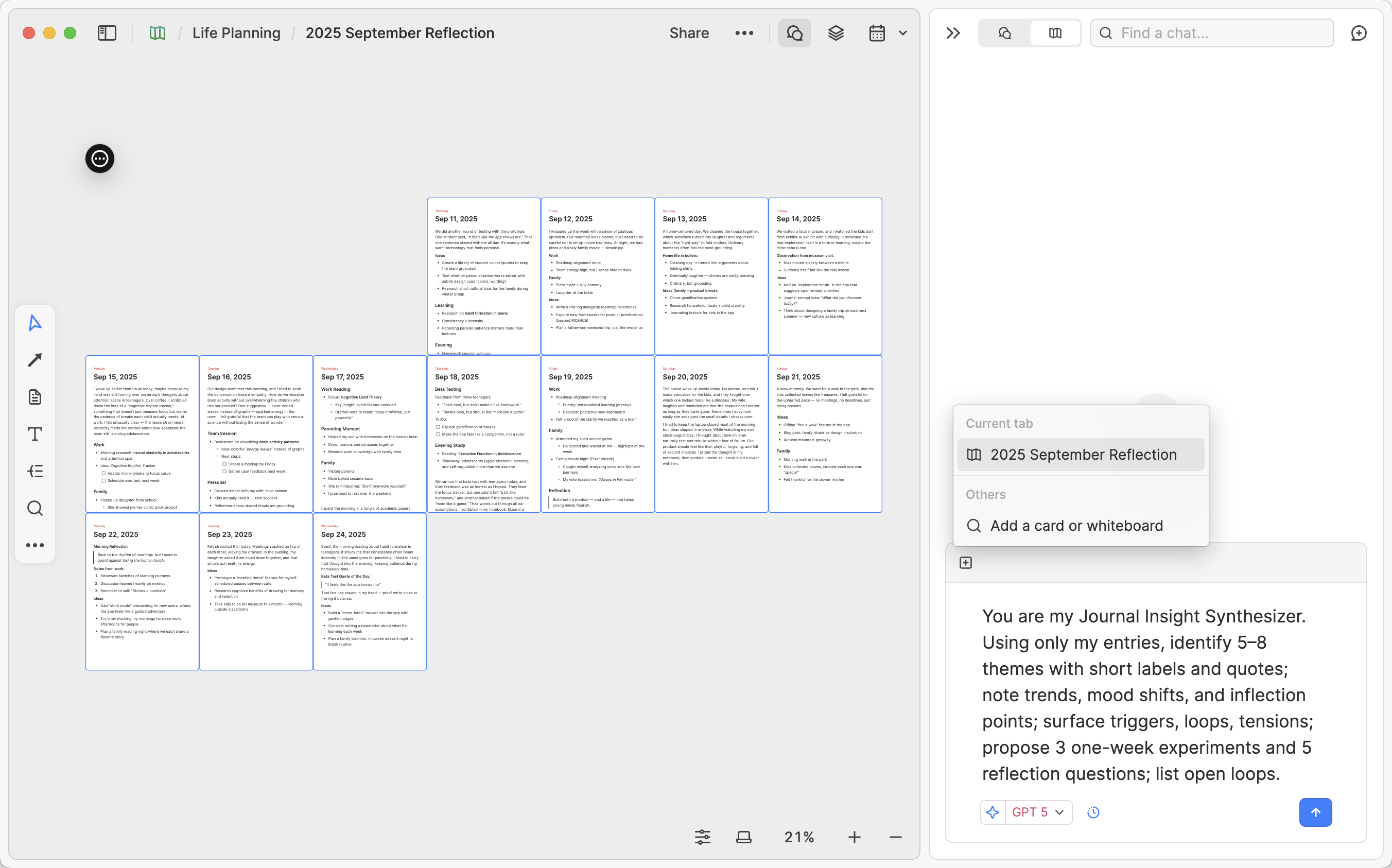
As you accumulate more and more content in your Heptabase Journal, you can discuss with AI based on journals from any date range. This is suitable for helping you identify recurring themes, improvement suggestions, and more, digging out unexpected insights from daily records!
-
Right-click in a blank area of the whiteboard and select Calendar, specifying to add all journals from a specific date range to the whiteboard.
-
Open Chat in the upper right corner of the whiteboard, click the add button and enter your question, allowing AI to read the entire whiteboard and respond based on your question.
-
AI's answers will directly locate specific content in the journals.
Chatting with Cards
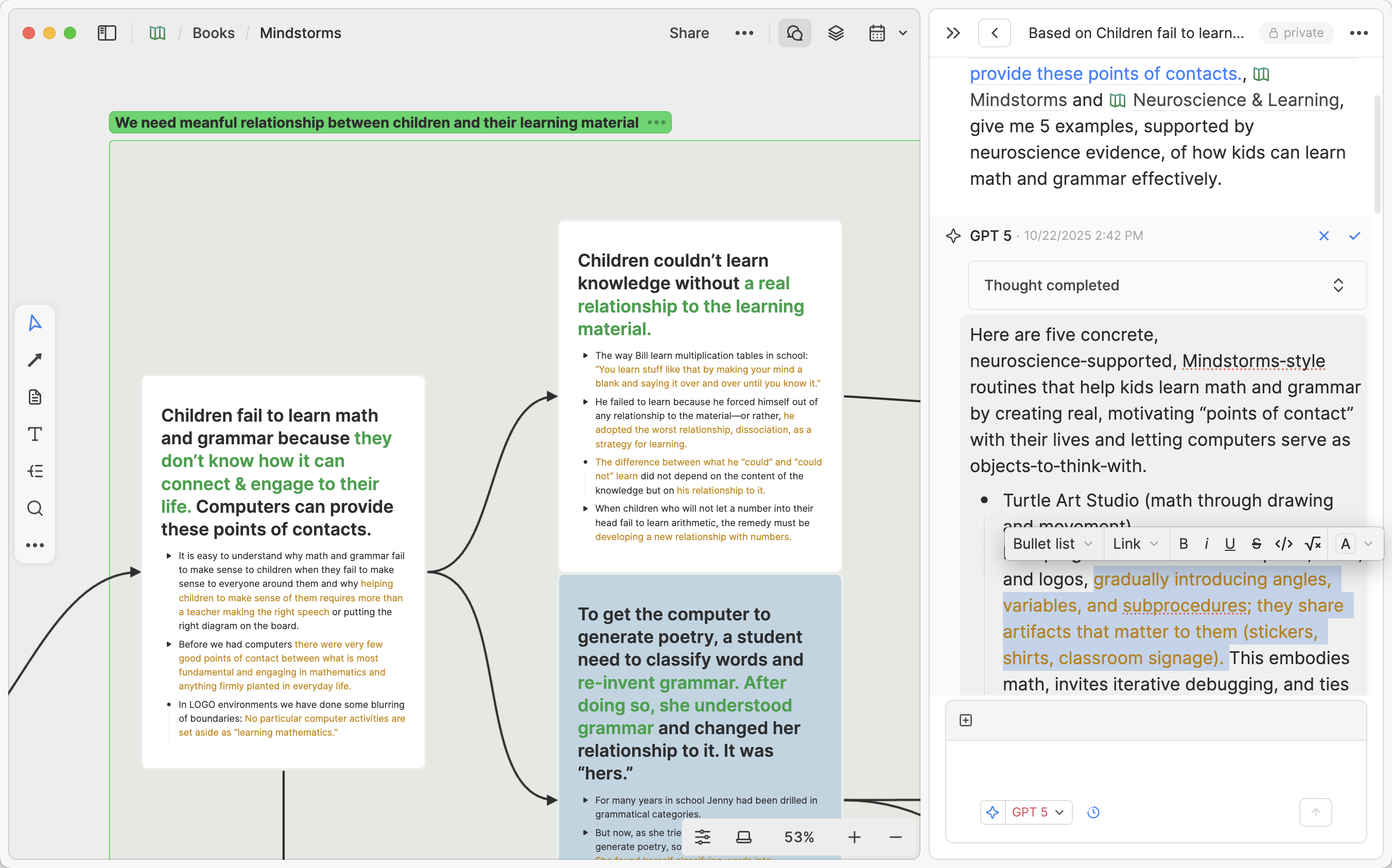
Of course, you can also discuss specific cards and paragraphs in Heptabase with AI. Here are several ways to chat with cards:
-
Select a card on the whiteboard, right-click and select New Chat.
-
Select text within a card and choose Add to Chat.
-
Mention specific cards using @ in your messages to AI, having AI answer your questions based on these cards' content.
When using Heptabase's AI chat feature, one of my favorite uses is to edit AI's reply messages, highlighting paragraphs I find important, adding some of my own annotations, and deleting information that's not useful to me. You can click the Edit button in the upper right corner of an AI's reply message to modify its content.
Chatting with Your Entire Space
Heptabase has a very powerful feature called "Chat with your entire Space." This option is enabled by default, which means that whenever you ask AI a question, it will search for relevant data across your entire Space and attempt to answer your question.
You'll see AI's thought process showing which content it's trying to search and read. For example, when you ask it to analyze what you've been researching over the past month, it might reference your journal cards from the past month. When you ask about specific topic keywords, it will search for corresponding cards, whiteboards, and PDFs. If you want more precise control over what data AI references, you can temporarily turn off the Space option and manually add the data you want it to reference.
To learn more about how AI accesses your data when "Space" is enabled, please refer to What data can AI access when I turn on the "Space" option in the AI chat?
AI Credits
Currently, as long as you're a Heptabase subscriber, you receive some free AI credits from Heptabase each month to use for chatting with AI. Therefore, if you've read this far, we recommend you immediately try using the Research a topic feature to import some materials you want to research and learn about, and discuss them with AI.
If you're subscribed to the Pro plan, the monthly free credits are limited. If you want more AI credits, you can consider upgrading to the Premium plan to enjoy the following benefits:
- Unlimited usage of basic models like Gemini 3 Flash and GPT 5-mini when you run out of AI credits.
- 10× the AI usage limit of the Pro plan
- Access to all the latest models from Google, OpenAI, and Anthropic (the Pro plan only provides access to Gemini series models)
For detailed information about pricing and plans, please refer to Pro and Premium Plans: Pricing & FAQ.
Advanced Features: Model Context Protocol (MCP)
For advanced users, Heptabase supports the Model Context Protocol (MCP), which allows external AI services (such as ChatGPT or Claude) to directly read, search, and write to your Heptabase knowledge base. This creates a seamless loop between thinking with AI and growing your long-term knowledge in Heptabase.
To learn more about setting up and using MCP, please refer to: How to use Heptabase MCP.
本文重點
在 Heptabase 中,你可以在白板上開啟 Chat 與最新的 AI 模型進行對話,透過把卡片、Section、白板,或是 PDF、影片、日誌等內容添加到對話脈絡中,讓 AI 直接基於你選擇的內容進行回答。你也能將重要的訊息編輯與註解後放回白板中,和既有筆記一起視覺化整理、集中管理該主題的相關討論。透過與 AI 協作,將線性的對話記錄轉化為更完整知識結構,持續建立對知識主題的深入理解。
前言
在 AI 時代,人們會使用 ChatGPT、Google Gemini、Claude 這些最知名的 AI App 來學習和研究某個他們在乎的主題。然而:
-
當主題較複雜、涉及到許多不同觀念之間的聯繫時,你可能會希望能把 AI 所提供的知識重點從線性的對話串中拆解,放到一個大白板上便於研究與複習。
-
當你向 AI 提問時,你可能會希望 AI 能讀取你之前寫過的筆記或保存的知識內容,並且基於這些內容提供你有價值的回答。
這些正是 Heptabase 的 AI 功能擅長的事情。在這篇文章,我會帶你走過在 Heptabase 使用 AI 加速學習與研究的方法,並且針對不同類型的知識來源,分享常見的使用場景與工作流。
方法概述
一般來說,在 Heptabase 與 AI 協作通常包含以下幾個核心動作:
-
在主題白板中開啟 Chat,集中管理與該主題相關的對話。
-
以添加按鈕「+」或「@」提及,將白板與特定內容提供給 AI 作為脈絡。
-
將白板上的 PDF、影片、日誌、卡片右鍵添加到 Chat,並且基於這些來源進行對話。
-
將有價值的對話拖到白板或複製到卡片上進行編修、添加自己的註解。
-
將滑鼠停在白板上的任何卡片上方以顯示 AI 動作按鈕,並使用它來執行預設或自訂的 AI 動作。
-
以 Section、子白板或箭頭,逐步把 AI 協助產生的理解,整合進你的知識網絡中。
使用 AI 研究主題
你可以在左側邊欄找到 Research a topic 的按鈕,按下去後會開啟一個介面,讓你可以上傳多種類型的內容,包含 PDF、YouTube 連結或播放清單、.docx 與純文字文件和圖片等,接著只要點擊 Start research on a new whiteboard,就會幫你把這些上傳的內容一起加到一個新的白板裡。系統會自動解析 PDF 的內容,也會下載對應的 YouTube 影片字幕。接著你可以:
- 開始向 AI 詢問關於這個白板的任何問題
- 在 AI 回覆的內容中,都會帶有原始資料的引用連結,指向特定的段落區塊或時間戳,只要點一下就會跳轉到對應的地方
- 如果你滿意 AI 的回覆,只需要按 New card 按鈕就可以把它存成卡片
當你想要開始研究一個新主題時,透過這個方式可以快速上傳許多相關資料,並且讓 AI 為你規劃研究方向或摘要內容,接著你可以繼續建立自己的卡片、導入更多資料,並反覆向 AI 對話,建立屬於你的深度理解。
與白板對話
在 Heptabase,每個白板都代表著一個你在乎的主題。當你打開一個白板時,你可以點擊白板右上角的 Chat,查看與這個白板相關的對話。在每一則對話裡,你不僅可以跟這個白板的其他協作者對話,也可以開啟 AI 模式,跟來自 OpenAI、Google、Anthropic 等科技公司的最新 AI 模型們對話。
白板之於 AI 對話有三個主要用途:
-
思考工具:當你想要更好地梳理 AI 傳給你的訊息時,可以直接把你認為有價值的訊息拖到白板上視覺化。隨著累積的對話與訊息越來越多,你便能以這些訊息為基礎在白板上對該主題建立更深入、全面的理解。
-
主題式資料夾:你可以把與某個主題有關的 AI 對話集中放在同一個白板中,方便未來查找。
-
知識脈絡:你可以把整個白板添加到與 AI 對話的脈絡中,讓 AI 基於白板上的內容回答你問題。舉例來說,你可以一鍵把過去半年寫的所有日誌放到白板裡,請 AI 讀完後問它你所不知道的、跟你有關的事情,或是基於這些日誌給予你建議;或是把多個 PDF 檔與 YouTube 影片丟到白板上,讓 AI 以這些檔案和影片字幕的內容為基礎去回答你的問題。
具體來說,你可以按照下面步驟開始進行 AI 對話:
-
打開主題白板,點擊右上角 **Chat,**此時預設模式為 AI Chat。
-
在 Chat 中選擇 AI 模型和脈絡,輸入問題並開始對話。
-
將你認為有價值的訊息拖到白板上,並且基於這些資訊發展出更多對於該主題的理解。
提供脈絡給 AI:添加按鈕與「@」提及
添加脈絡是讓 AI 發揮最大價值的功能之一,你可以透過以下方式提供脈絡給 AI:
-
添加按鈕:點擊對話框左方的「+」,你可以將特定卡片或是整個白板添加至對話脈絡中。
-
@ 提及:在訊息中輸入「@」,搜尋你希望作為脈絡的卡片、Section、白板並選取將其作為重點脈絡,這種方法適合快速尋找特定素材。
與 PDF 對話
如果你的學習與研究來源常是 PDF 檔案(例如:學術工作者做文獻回顧、產品經理閱讀產業報告、學生閱讀參考書),透過 Heptabase 的 PDF Parser 與 AI,你可以讓 AI 協助你理解 PDF 內容,甚至針對特定頁數、段落和 AI 進行討論,並將關鍵重點拆成卡片放到白板,同時保留頁碼與段落的可追溯性。
舉例來說,當你想要和 AI 針對 PDF 討論時,你可以:
-
直接把 PDF 拖到白板上。
-
將游標滑動到 PDF 上方,直接按下「Ask AI」,或者對 PDF 按右鍵,選擇 New Chat,與 AI 展開對話。
在第一次進行對話時,Heptabase 會先自動把 PDF 中的所有文字、表格、圖片、公式等內容全部解析成適合 AI 讀取的格式,因此會需要一些等待時間。
一旦解析完成,你未來跟 AI 基於這份 PDF 對話時可以指定頁數範圍,具體方法如下:
-
確認該 PDF 已經被添加至當前的 AI 對話脈絡中(目前不適用於使用 @ 提及的 PDF)。
-
點擊對話框上方的 PDF 標題。
-
此時系統會跳出一個選取範圍的選單,選取指定頁數範圍。
此外,你也可以直接圈選你希望作為脈絡的段落並提供給 AI,在下圖,我圈選了章節 3.2 的部分範圍,然後透過左側的按鈕將該範圍的內容添加至對話脈絡中。
如果你想了解更多在 Heptabase 深度學習的實際案例,你可以閱讀 The Best Way to Use AI for Learning;如果你想知道怎麼在 Heptabase 中針對不同來源的資料閱讀與學習,請參考 Read PDFs, media, eBooks & webpages。
與影片對話
如果你更偏好透過影片來學習或研究(例如:觀看特定主題的影片並寫下筆記、參加線上課程、複習研討會與講座的重播),你可以在白板中直接與 AI 針對指定的影片進行討論。如果這是一部 YouTube 影片,請參考以下做法:
-
複製你希望添加的 YouTube 影片網址。
-
回到白板,使用快捷鍵 (
Cmd/Ctrl + V) 貼上影片。 -
對該影片右鍵並選擇 New Chat,與 AI 展開對話。
這樣一來,AI 便能夠針對影片內容進行回覆,並附上時間戳來幫助你隨時回溯到關鍵段落。透過這種方式,你可以快速將四散於影片中的重點轉變成消化過後的知識架構。
另外,如果你想和 AI 討論的影片並非來自於 YouTube,又或是你有其他像是音檔、Podcast 等類型的學習素材,現在你需要先將檔案拖曳到白板上,並透過 Heptabase 的音檔轉文字功能生成字幕後,才可以和 AI 以這類檔案為基礎進行對話。關於這部份的操作,請閱讀 Read PDFs, media, eBooks & webpages 的 Podcast 章節。
與日誌對話
當你在 Heptabase 日誌(Journal)累積越來越多的內容後,你可以基於任何日期範圍內的日誌和 AI 討論,它適合用來幫助你找出重複主題、改進建議等,從日常記錄中挖掘意料之外的洞見!
-
在白板空白處右鍵並選取 Calendar,指定把特定日期範圍的 Journal 全部丟到白板上。
-
到白板右上角開啟 Chat,點擊添加按鈕並輸入你的問題,讓 AI 讀取整個白板後根據你的問題進行回覆。
-
AI 的回答會直接定位到特定的 Journal 中的內容。
與卡片對話
當然,你也可以基於 Heptabase 中的特定卡片和段落與 AI 進行討論,以下是幾種可以與卡片對話的方式:
-
在白板上選取卡片,右鍵並選擇 New Chat。
-
選取卡片中的文字,選擇 Add to Chat。
-
在你傳給 AI 的訊息中用 @ 的方式去提及特定卡片,讓 AI 根據這些卡片的內容為基礎去回答你的問題。
在使用 Heptabase 的 AI 對話功能時,我很喜歡的一個用法是編輯 AI 回覆的訊息,把我認為重要的段落 Highlight 起來、添加一些我自己的註解,並把一些對我沒用的資訊刪掉。你可以點擊 AI 回覆訊息右上方的 Edit 按鈕來修改內容。
與整個 Space 對話
Heptabase 有個非常強大的功能是「與整個 Space 對話」。這個選項預設是開啟的,這代表你只要問 AI 問題,他就會從你的整個 Space 中搜尋相關的資料並且嘗試回答你的問題。
這時你會從 AI 的思考過程中看到他試圖搜尋與閱讀哪些內容,例如,當你請他分析過去一個月你都在研究什麼時,他可能會參考你過去一個月的日記卡片。當你問他特定主題的關鍵字,他會去找對應的卡片、白板與 PDF。如果你希望更精準控制 AI 要參考的資料,你可以暫時關閉 Space 選項,並且手動加入你想要他參考的資料。
若想了解更多關於開啟 Space 選項時 AI 如何存取你的資料,請參考當我開啟 AI 對話中的「Space」選項時,AI 可以存取哪些資料?
AI 額度
目前,只要你是 Heptabase 的訂閱用戶,每個月都可以獲得 Heptabase 提供的一些免費 AI credits,讓你用來跟 AI 對話。因此,假設你已經看到這裡,我們建議你可以馬上嘗試使用 Research a topic 功能導入一些你想研究與學習的資料,並且跟 AI 討論這些資料。
假設你訂閱的是 Pro 方案,那麼每個月的免費額度有限,若你想要更多的 AI 額度,你可以考慮升級到 Premium 方案,以享有下列的福利:
- 在你用完 AI credits 時仍可以無限制使用基礎模型如 Gemini 3 Flash 以及 GPT 5-mini。
- Pro 方案 10 倍的 AI 使用額度
- 可以使用來自 Google、OpenAI 和 Anthropic 的所有最新模型(Pro 方案只能使用 Gemini 系列的模型)
有關定價和方案的詳細資訊,請參考 Pro 和 Premium 方案:定價與常見問題。
進階功能:模型上下文協議(MCP)
對於進階使用者,Heptabase 支援模型上下文協議(MCP),允許外部 AI 服務(例如 ChatGPT 或 Claude)直接讀取、搜尋和寫入你的 Heptabase 知識庫。這在與 AI 思考和在 Heptabase 中增長長期知識之間建立了無縫循環。
若想了解更多關於設定和使用 MCP 的資訊,請參考:如何使用 Heptabase MCP。
本文の要点
Heptabase では、ホワイトボード上で Chat を開き、最新の AI モデルと対話することができます。カード、セクション、ホワイトボード、または PDF、動画、ジャーナルなどのコンテンツを対話の文脈に追加することで、AI に選択したコンテンツに基づいて直接回答させることができます。また、重要なメッセージを編集・注釈してホワイトボードに戻し、既存のノートと一緒に視覚的に整理し、そのトピックに関する関連ディスカッションを一元管理することもできます。AI との協働を通じて、線形の対話記録をより完全な知識構造に変換し、知識トピックへの深い理解を継続的に構築します。
序文
AI 時代において、人々は ChatGPT、Google Gemini、Claude などの著名な AI アプリを使用して、関心のあるトピックについて学習・研究しています。しかし:
-
トピックが複雑で、多くの異なる概念間の関連が含まれる場合、AI が提供する知識のポイントを線形の対話スレッドから抽出し、研究や復習をしやすくするために大きなホワイトボード上に配置したいと思うかもしれません。
-
AI に質問する際、以前書いたノートや保存した知識コンテンツを AI に読み取らせ、これらのコンテンツに基づいて価値ある回答を提供してほしいと思うかもしれません。
これらはまさに Heptabase の AI 機能が得意とすることです。この記事では、Heptabase で AI を使用して学習と研究を加速する方法をご案内し、さまざまなタイプの知識ソースに対して、一般的な使用シナリオとワークフローを共有します。
方法の概要
一般的に、Heptabase で AI と協働する際は、通常以下のコアアクションが含まれます:
-
トピックのホワイトボードでChatを開き、そのトピックに関連する対話を一元管理する。
-
追加ボタン「+」または「@」メンションを使用して、ホワイトボードと特定のコンテンツを AI に文脈として提供する。
-
ホワイトボード上の PDF、動画、ジャーナル、カードを右クリックしてChatに追加し、これらのソースに基づいて対話する。
-
価値ある対話をホワイトボードにドラッグするか、カードにコピーして編集し、自分の注釈を追加する。
-
ホワイトボード上の任意のカードにカーソルを合わせて AI アクションボタンを表示し、それを使用してデフォルトまたはカスタム AI アクションを実行する。
-
セクション、サブホワイトボード、または矢印を使用して、AI 支援による理解を徐々に知識ネットワークに統合する。
AI でトピックを研究する
左サイドバーに「Research a topic」ボタンがあります。クリックすると、PDF、YouTube リンクまたはプレイリスト、.docx ファイル、プレーンテキスト文書、画像など、さまざまなタイプのコンテンツをアップロードできるインターフェースが開きます。アップロード後、Start research on a new whiteboard をクリックするだけで、システムがアップロードされたすべてのコンテンツを新しいホワイトボードに追加します。PDF コンテンツの解析と YouTube 動画のトランスクリプトのダウンロードが自動的に行われます。その後、以下のことができます:
- ホワイトボードについて AI に何でも質問を開始
- AI の回答には元データへの引用リンクが含まれ、特定の段落ブロックやタイムスタンプを指しています。クリックするだけで対応する場所にジャンプできます
- AI の回答に満足したら、New card ボタンをクリックするだけでカードとして保存できます
新しいトピックの研究を開始したい場合、この方法で関連資料を素早くアップロードし、AI に研究方向の計画やコンテンツの要約を手伝ってもらうことができます。その後、自分のカードを作成し続け、より多くの資料を導入し、AI との対話を繰り返して、自分だけの深い理解を構築することができます。
ホワイトボードとの対話
Heptabase では、各ホワイトボードが関心のあるトピックを表しています。ホワイトボードを開くと、右上隅のChatをクリックして、このホワイトボードに関連する対話を表示できます。各対話では、このホワイトボードの他の協力者と対話できるだけでなく、AI モードを有効にして、OpenAI、Google、Anthropic などのテクノロジー企業の最新 AI モデルと対話することもできます。
ホワイトボードは AI 対話において 3 つの主な用途があります:
-
思考ツール:AI から受け取ったメッセージをより良く整理したい場合、価値があると思うメッセージを直接ホワイトボードにドラッグして視覚化できます。対話とメッセージが蓄積されるにつれて、これらのメッセージを基礎として、ホワイトボード上でそのトピックについてより深く包括的な理解を構築できます。
-
トピック別フォルダ:特定のトピックに関連する AI 対話を同じホワイトボードに集中させて、将来の検索を容易にできます。
-
知識の文脈:ホワイトボード全体を AI 対話の文脈に追加して、AI にホワイトボード上のコンテンツに基づいて質問に答えさせることができます。例えば、過去半年間に書いたすべてのジャーナルをワンクリックでホワイトボードに配置し、AI に読ませた後、自分について知らないことを尋ねたり、これらのジャーナルに基づいてアドバイスを求めたりできます。または、複数の PDF ファイルと YouTube 動画をホワイトボードに配置し、AI にこれらのファイルや動画の字幕のコンテンツに基づいて質問に答えさせることができます。
具体的には、以下の手順で AI 対話を開始できます:
-
トピックのホワイトボードを開き、右上隅のChatをクリックします。この時、デフォルトモードはAI Chatです。
-
Chat内で AI モデルと文脈を選択し、質問を入力して対話を開始します。
-
価値があると思うメッセージをホワイトボードにドラッグし、この情報に基づいてそのトピックについてより多くの理解を展開します。
AI に文脈を提供する:追加ボタンと「@」メンション
文脈を追加することは、AI が最大の価値を発揮できる機能の 1 つです。以下の方法で AI に文脈を提供できます:
-
追加ボタン:対話ボックスの左隅の「+」をクリックして、特定のカードまたはホワイトボード全体を対話の文脈に追加できます。
-
@メンション:メッセージ内で「@」を入力し、文脈としたいカード、セクション、ホワイトボードを検索して選択し、重要な参照として使用します。この方法は特定の素材を素早く見つけるのに適しています。
PDF との対話
学習や研究のソースが PDF ファイルである場合(例:学術研究者が文献レビューを行う、プロダクトマネージャーが業界レポートを読む、学生が参考書を読む)、Heptabase の PDF Parser と AI を通じて、AI に PDF コンテンツの理解を支援させ、特定のページや段落について AI と議論し、重要なポイントをカードに分解してホワイトボードに配置しながら、ページ番号と段落のトレーサビリティを維持できます。
例えば、PDF について AI と議論したい場合、以下のことができます:
-
PDF を直接ホワイトボードにドラッグします。
-
PDF の上にカーソルを移動して Ask AI をクリックするか、PDF を右クリックして New Chat を選択し、AI との対話を開始します。
最初の対話時、Heptabase は自動的に PDF 内のすべてのテキスト、表、画像、数式などのコンテンツを AI が読み取るのに適した形式に解析するため、待ち時間が必要です。
解析が完了すると、今後この PDF に基づいた AI 対話でページ範囲を指定できます。具体的な方法は以下の通りです:
-
PDF が現在の AI 対話の文脈に追加されていることを確認します(現在、**@**を使用してメンションした PDF には適用されません)。
-
対話ボックス上部の PDF タイトルをクリックします。
-
この時、範囲選択メニューがポップアップするので、指定したページ範囲を選択します。
さらに、文脈としたい段落を直接選択して AI に提供することもできます。下の画像では、セクション 3.2 の一部範囲を選択し、左側のボタンを通じてその範囲のコンテンツを対話の文脈に追加しています。
Heptabase での深い学習の実際のケースについてもっと知りたい場合は、The Best Way to Use AI for Learningを読むことができます。Heptabase でさまざまなソースのデータを読み取って学習する方法を知りたい場合は、Read PDFs, media, eBooks & webpagesを参照してください。
動画との対話
動画を通じて学習や研究することを好む場合(例:特定のトピックの動画を視聴してノートを取る、オンラインコースに参加する、セミナーや講演の再生を復習する)、ホワイトボード上で直接 AI と指定した動画について議論できます。これが YouTube 動画の場合は、以下の手順に従ってください:
-
追加したい YouTube 動画の URL をコピーします。
-
ホワイトボードに戻り、ショートカットキー(
Cmd/Ctrl + V)を使用して動画を貼り付けます。 -
その動画を右クリックし、New Chatを選択して AI との対話を開始します。
このようにして、AI は動画のコンテンツに基づいて応答でき、タイムスタンプを付けて、いつでも重要なセグメントにトレースバックできるように支援します。この方法を通じて、動画全体に散らばった重要なポイントを消化された知識構造に素早く変換できます。
また、AI と議論したい動画が YouTube からのものでない場合、または音声ファイル、ポッドキャストなどの他のタイプの学習素材がある場合、現在はまずファイルをホワイトボードにドラッグし、Heptabase の音声からテキストへの機能を使用して字幕を生成した後でないと、AI とこのタイプのファイルに基づいて対話することはできません。この部分の操作については、Read PDFs, media, eBooks & webpagesの Podcast セクションをお読みください。
ジャーナルとの対話
Heptabase ジャーナル(Journal)にどんどんコンテンツが蓄積されていくと、任意の日付範囲内のジャーナルに基づいて AI と議論できます。これは繰り返しのテーマや改善提案などを見つけるのに適しており、日常の記録から予想外の洞察を掘り起こすことができます!
-
ホワイトボードの空白部分を右クリックし、Calendarを選択して、特定の日付範囲の Journal すべてをホワイトボードに配置することを指定します。
-
ホワイトボードの右上隅でChatを開き、追加ボタンをクリックして質問を入力し、AI にホワイトボード全体を読み取らせた後、質問に基づいて応答させます。
-
AI の回答は、Journal 内の特定のコンテンツに直接位置付けられます。
カードとの対話
もちろん、Heptabase 内の特定のカードや段落に基づいて AI と議論することもできます。以下は、カードと対話するいくつかの方法です:
-
ホワイトボード上でカードを選択し、右クリックしてNew Chatを選択します。
-
カード内のテキストを選択し、Add to Chatを選択します。
-
AI に送信するメッセージ内で**@**を使用して特定のカードをメンションし、AI にこれらのカードのコンテンツに基づいて質問に答えさせます。
Heptabase の AI 対話機能を使用する際、私が非常に気に入っている使い方の 1 つは、AI 返信メッセージを編集して、重要だと思う段落をハイライトし、自分の注釈を追加し、役に立たない情報を削除することです。AI 返信メッセージの右上隅にあるEditボタンをクリックして、コンテンツを変更できます。
Space 全体との対話
Heptabase には「Space 全体と対話する」という非常に強力な機能があります。このオプションはデフォルトで有効になっており、AI に質問するだけで、Space 全体から関連データを検索して質問に答えようとします。
AI の思考プロセスから、どのコンテンツを検索して読み取ろうとしているかがわかります。たとえば、過去 1 か月間に研究していた内容を分析するよう依頼すると、過去 1 か月間のジャーナルカードを参照する可能性があります。特定のトピックのキーワードについて尋ねると、対応するカード、ホワイトボード、PDF を検索します。AI が参照するデータをより正確に制御したい場合は、Space オプションを一時的にオフにして、参照させたいデータを手動で追加できます。
「Space」オプションを有効にしたときに AI がどのようにデータにアクセスするかについて詳しく知りたい場合は、AI チャットで「Space」オプションを有効にすると、AI はどのデータにアクセスできますか? を参照してください。
AI クレジット
現在、Heptabase のサブスクライバーであれば、毎月 Heptabase から無料の AI クレジットを受け取り、AI との対話に使用できます。したがって、ここまで読んだ方は、Research a topic 機能を使用して研究や学習したい資料をインポートし、AI とそれらについて議論することをすぐに試してみることをお勧めします。
Pro プランにサブスクライブしている場合、毎月の無料クレジットには制限があります。より多くの AI クレジットが必要な場合は、Premium プランへのアップグレードを検討して、以下の特典を享受できます:
- AI クレジットが切れても、Gemini 3 Flash や GPT 5-mini などの基本モデルを無制限に使用できます。
- Pro プランの 10 倍の AI 使用制限
- Google、OpenAI、Anthropic のすべての最新モデルにアクセスできます(Pro プランでは Gemini シリーズのモデルのみ使用可能)
価格設定とプランの詳細については、Pro and Premium Plans: Pricing & FAQ をご覧ください。
高度な機能:モデルコンテキストプロトコル(MCP)
上級ユーザー向けに、Heptabase は**モデルコンテキストプロトコル(MCP)**をサポートしており、外部 AI サービス(ChatGPT や Claude など)が Heptabase 知識ベースに直接読み取り、検索、書き込みを行えるようにします。これにより、AI での思考と Heptabase での長期的な知識の成長との間にシームレスなループが作成されます。
MCP の設定と使用について詳しく知りたい場合は、How to use Heptabase MCP を参照してください。